Skip to content
Quick Tutorial
- Start the program and accept the elevation prompt.
- In the tree on the left, select the drive or partition you want to search.
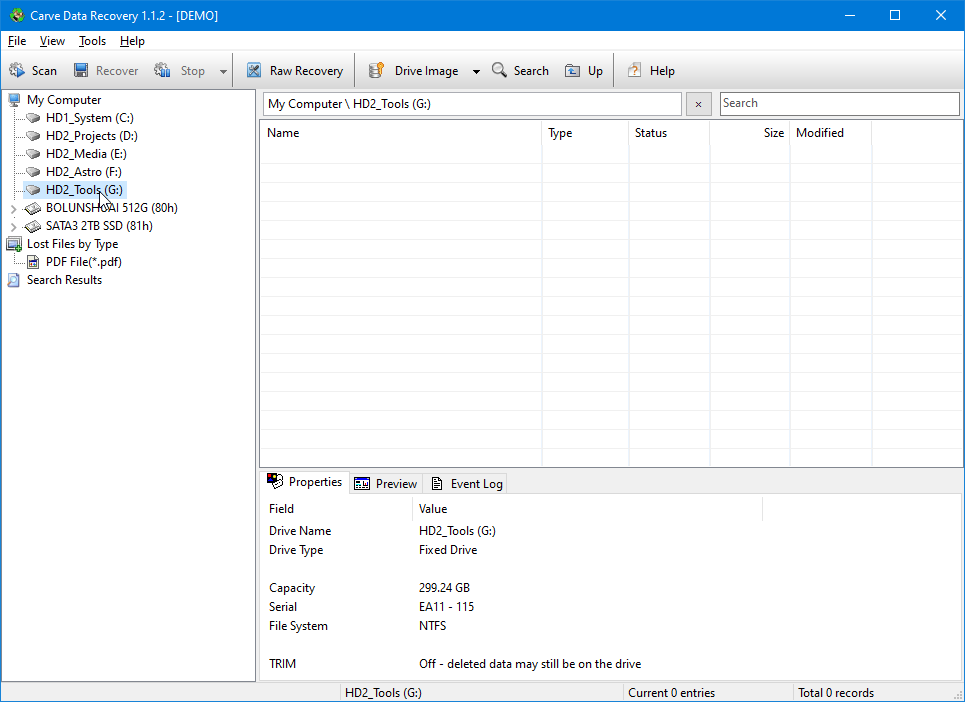
- Press Scan on the toolbar and choose a scan mode:
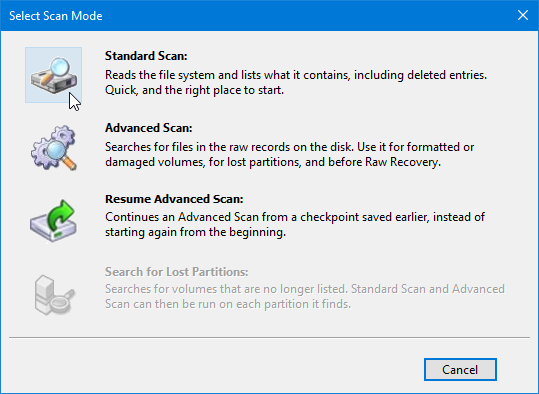
- Standard Scan reads the file system and lists what it finds,
including deleted entries. Start here.
- Advanced Scan Use it when Standard Scan finds nothing, or when
the partition is damaged, missing or unrecognised.
- Wait for the scan to finish. Progress and the number of records found appear in
the status bar, and the Event Log pane records what happened.
- Browse the tree or the file list. Click a file to see its properties and, where
the format is supported, a preview.
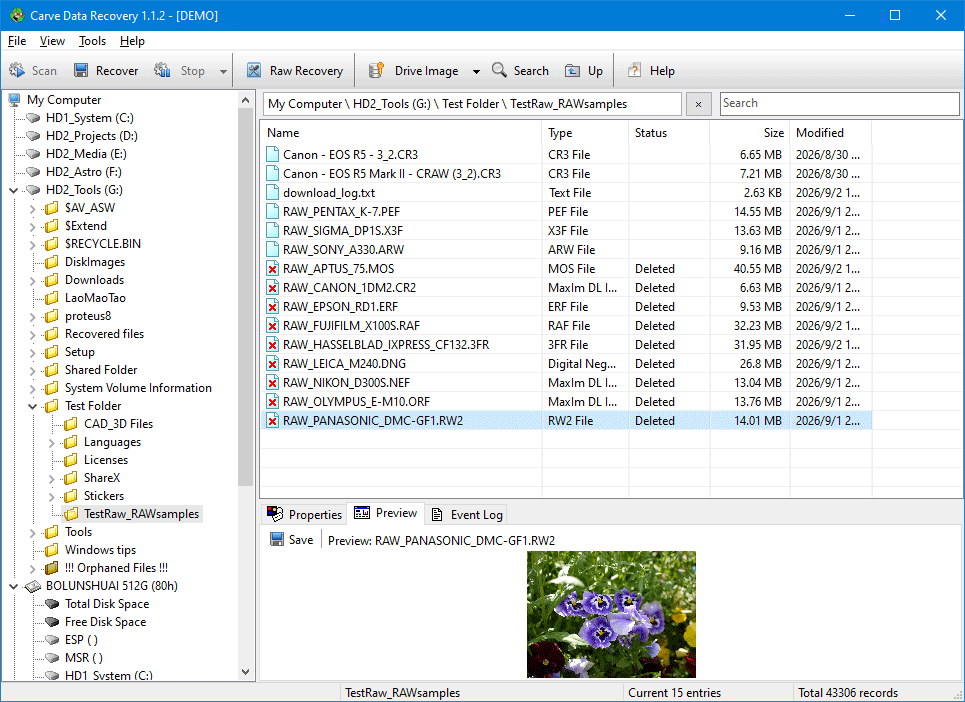
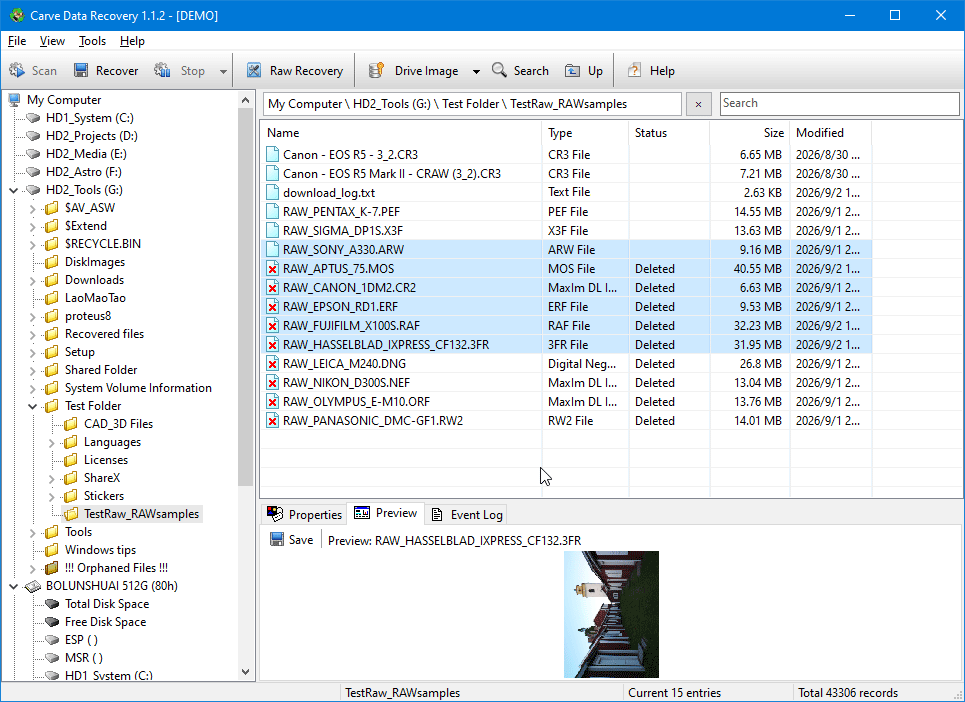
- Select the files you want - use Ctrl and Shift to select more than one - then
press Recover.
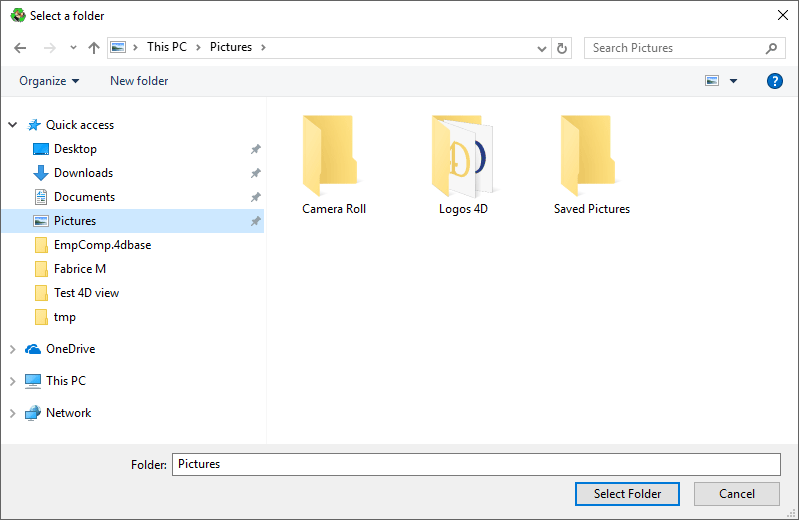
- Choose a folder on a different drive and let the recovery finish.
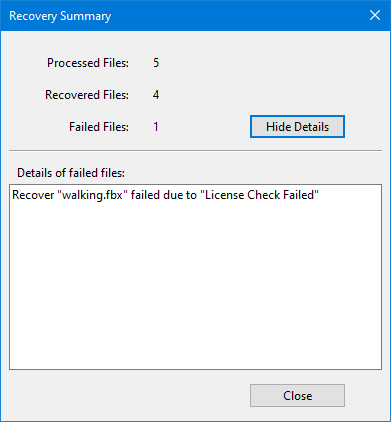
- Read the Recovery Summary. If files failed, open the details list: a file that
Standard Scan could not reach is often recoverable after an Advanced Scan.
Related topics
More in Getting to know it
- OverviewCarve Data Recovery is a file recovery utility for FAT, exFAT and NTFS volumes. It brings back files that were deleted, lost to an accidental format, or left…
- What's NewWhat this version of Carve Data Recovery added: exFAT and 4Kn support, recovery from damaged media, Raw Recovery, previews, finding files and drive health.
- InstallationCopy the program folder anywhere on a drive that is not the one you are going to recover from, then run CarveDataRecovery.exe.
- The Main WindowThe window has three parts: the object tree on the left, the file list on the right, and a set of panes below the list.
- The Properties PaneThe pane at the bottom right of the main window has three pages: Properties, Preview and Event Log.