The Properties Pane
The pane at the bottom right of the main window has three pages: Properties, Preview and Event Log. Properties describes whatever is selected - a node in the tree, or a row in the file list - as a two-column table of field names and values. Everything on this page is read-only. Nothing shown here is ever written back to the drive.
Partition and volume nodes
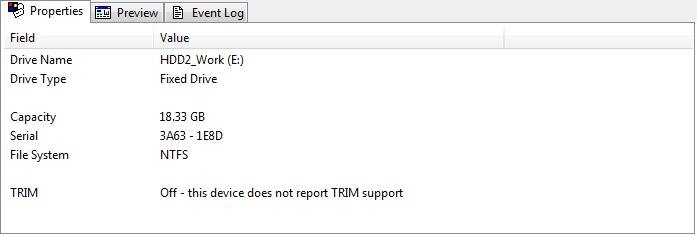
Selecting a partition, a logical drive or a lost partition shows:
- Drive Name - the volume label and the drive letter, or --- when the volume has no label.
- Drive Type - Fixed Drive, Removable Drive, Floppy Drive, Lost/Free Space, or Whole Disk for a Total Disk Space node.
- Capacity - the size of the partition. When the partition is larger than the image it was loaded from, the value reads 45.0 GB in image of 100.0 GB claimed: what is really there first, what the partition table claims second. Such partitions are also marked [partial] in the tree, and a partition that is entirely outside the image is marked [not in image] and greyed out.
- Serial - the volume serial number, when the boot sector could be read.
- File System - FAT12, FAT16, FAT32, NTFS or exFAT, as recognised from the contents of the boot sector.
After a blank separator line the table carries one more row:
The TRIM row
TRIM is the command Windows sends to a flash drive to say that a deleted file's blocks are no longer needed. When it is delivered, the drive is free to erase them - usually within minutes - and the data is gone for good. The TRIM row tells you whether that could have happened for the volume you have selected, so that you can tell "these files cannot be recovered" apart from "this tool cannot find them".
- On - deleted data on this drive may already be erased - the volume is NTFS, the Windows setting allows TRIM, and the device reports that it supports it. Files deleted from this volume are probably zeroed. They may still be listed with correct names and sizes, because the directory entries are not trimmed - only the data is.
- Off - deleted data may still be on the drive - Windows TRIM has been
disabled system-wide (
fsutil behavior set DisableDeleteNotify 1), so the command is not sent at all. - Off - this device does not report TRIM support - the drive itself does not offer TRIM, or the USB bridge in between does not pass the command through. Both cases leave the data in place.
- Not used on FAT/exFAT volumes - Windows does not issue TRIM for those file systems at all, whatever the hardware.
- Not applicable (drive image) - the partition belongs to a loaded image file; TRIM does not reach an image.
- Unknown (whole disk covers several volumes) - a Total Disk Space node spans several volumes, so there is no single answer.
- Unknown ... - the device did not answer the query. Unknown is not the same as healthy: treat it as "no information".
Note that the TRIM row describes the volume, not the files in it. Turning TRIM off today does not bring back anything that was erased yesterday.
Physical drive nodes
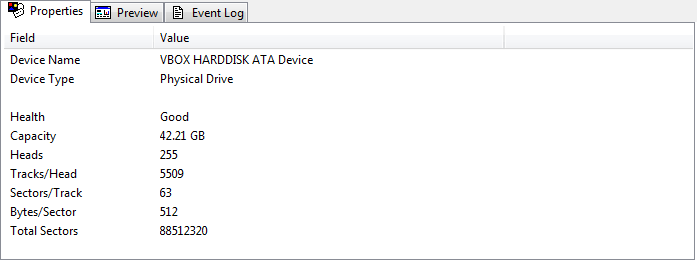
A physical drive shows its model, whether it is a fixed or a removable device, the drive geometry, and - after a blank separator line - its health:
- Good - every S.M.A.R.T. attribute is within its threshold and the drive reports no impending failure.
- Warning - <attribute> - an attribute has reached its threshold, or its raw value shows that something has already gone wrong (a non-zero reallocated sector count, for example). The attribute named is the worst one found. Copy anything important off the drive now.
- Dangerous - <attribute> - an attribute has passed its threshold. Stop using the drive.
- Unknown (SMART data could not be read) - the drive or the bridge did not answer. This is not a clean bill of health; see HDD Health.
The verdict is the same one shown in the HDD Health window: the worst attribute decides, and a drive that reports an impending failure is reported as Dangerous even when its attributes look fine.
Files and folders
Selecting a row in the file list shows its name, type, size, dates and attributes. For deleted entries the dates and the attributes are whatever survived in the directory entry - they are not guesses, but they can be stale if that entry has since been reused.
Related topics
More in Getting to know it
- OverviewCarve Data Recovery is a file recovery utility for FAT, exFAT and NTFS volumes. It brings back files that were deleted, lost to an accidental format, or left…
- What's NewWhat this version of Carve Data Recovery added: exFAT and 4Kn support, recovery from damaged media, Raw Recovery, previews, finding files and drive health.
- InstallationCopy the program folder anywhere on a drive that is not the one you are going to recover from, then run CarveDataRecovery.exe.
- The Main WindowThe window has three parts: the object tree on the left, the file list on the right, and a set of panes below the list.
- Quick TutorialA seven-step walkthrough of a recovery: pick the drive, choose a scan mode, preview what was found, then recover to a different drive and read the summary.