Advanced Scan
Advanced Scan does not trust the boot sector. It walks the disk sector by sector, picks up the records that describe files and folders wherever it finds them, and rebuilds a directory tree from them. It takes longer than Standard Scan, and it is what makes recovery possible when there is no usable file system left.
Advanced Scan is also the precondition for Raw Recovery: together they can rescue files from media whose file system cannot be read at all.
When to use it
- Standard Scan found nothing, or far less than expected.
- The volume was formatted and the files were not rebuilt.
- The partition is damaged, missing, or was never recognised in the first place.
- You intend to use Raw Recovery.
What it can be applied to
- A drive or partition.
- Free disk space.
- A whole physical drive - the option that still works when the partition table itself has been destroyed.
- A loaded drive image.
How to run it
- Select the object in the tree that you want to search.
- Press Scan, then choose Advanced Scan.
- If you are asked for a scan range, accept the default or narrow it down - see Limiting the scan range below.
- Wait. An Advanced Scan reads a great deal of data; the status bar shows both the overall progress and the stage the program has reached.
Limiting the scan range
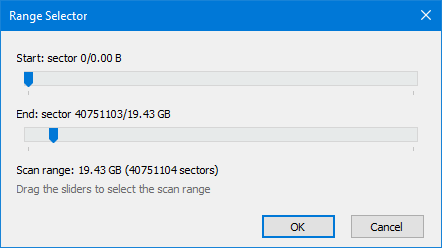
Before the scan starts you may be asked for a range, given in sectors and in bytes, counted from the start of the selected object. Scanning only part of a large disk is much faster when you already know roughly where the data is. A scan that is stopped and later resumed continues inside the range it started with.
Reading the results
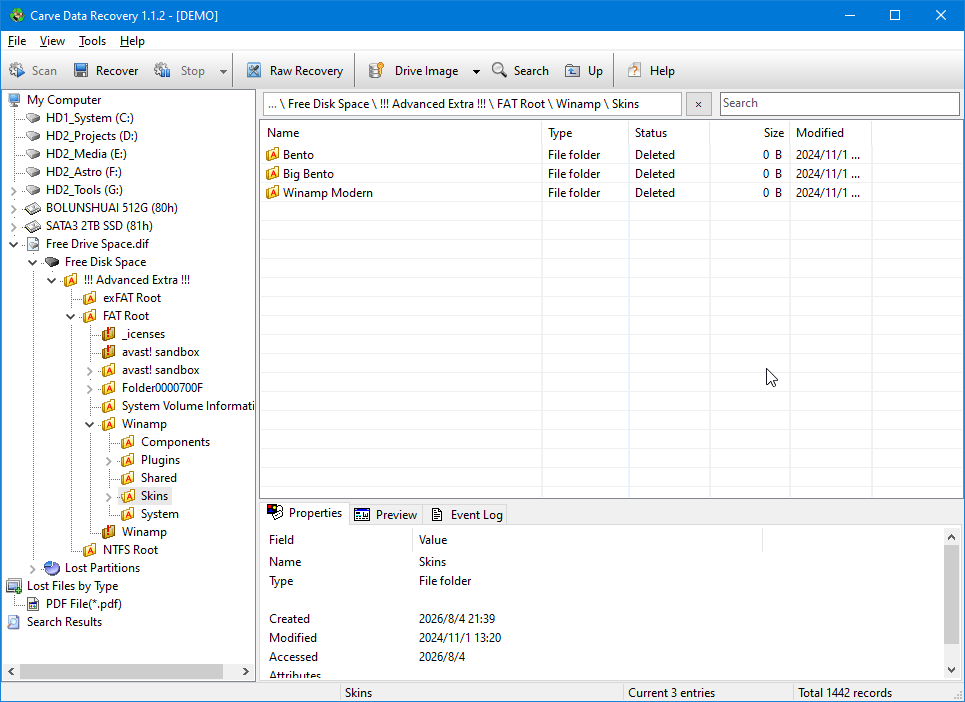
An Advanced Scan adds the !!! Advanced Extra !!! subtree to the object it scanned. Inside it:
- FAT Root, NTFS Root and exFAT Root hold the directory trees rebuilt from the records found on the disk. Only the roots that apply to the file systems actually found are filled in.
- Anything that could not be attached to a parent folder is collected under !!! Orphaned Files !!!, or as a folder named Folder%08x where the records show a folder but no owner. Lost files are listed here instead of disappearing.
- A folder whose records overlap another folder's - typically a deleted folder that now points at a folder above it - is marked as damaged and shown without children, because opening it would loop forever. It still appears, so that you can see the entry exists.
Selecting any of these nodes lists its files on the right, exactly as with a normal folder: preview them, recover them, or right-click a folder and choose Statistics to count what is inside it.
If it is interrupted
A long Advanced Scan can be stopped and resumed later from a saved checkpoint. See Save and Resume a Scan.
Related topics
Standard Scan
Save and Resume a Scan
Raw Recovery
Recovering Files
More in Scanning
- Standard ScanStandard Scan reads the file system on the selected object and lists the files and folders it describes, including the entries that have been deleted.
- Search for Lost PartitionsThis scan looks for the boot sectors of volumes that are no longer listed. Each one it recognises is added to the tree as a separate partition, with all of…
- Save and Resume a ScanAn Advanced Scan of a large drive can run for a long time. If you stop it - because you need the machine, or the drive is getting hot - you can have the…