Standard Scan
Standard Scan reads the file system on the selected object and lists the files and folders it describes, including the entries that have been deleted. It is fast, and it is the right first step in almost every case.
When to use it
- Files were deleted from Windows Explorer, the command line or another program.
- Files were lost when the Recycle Bin was emptied.
- Files were lost for an unknown reason - a virus, a crash, a failed write.
- A volume was formatted and the file system was rebuilt afterwards.
How to run it
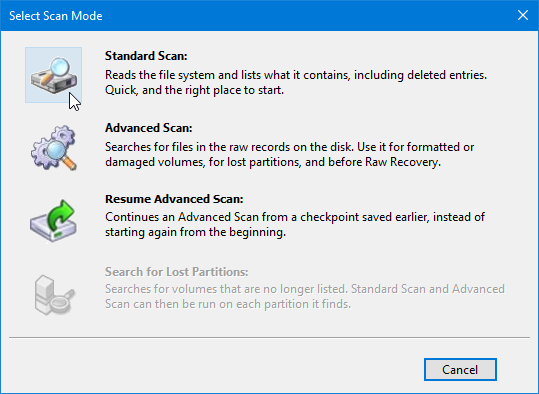
- Select the drive or partition in the tree. The scan entries in the right-click menu are available when exactly one drive or partition is selected.
- Press Scan, then choose Standard Scan in the scan mode dialog.
- Wait for the scan to finish. Progress is shown in the status bar.
Reading the results
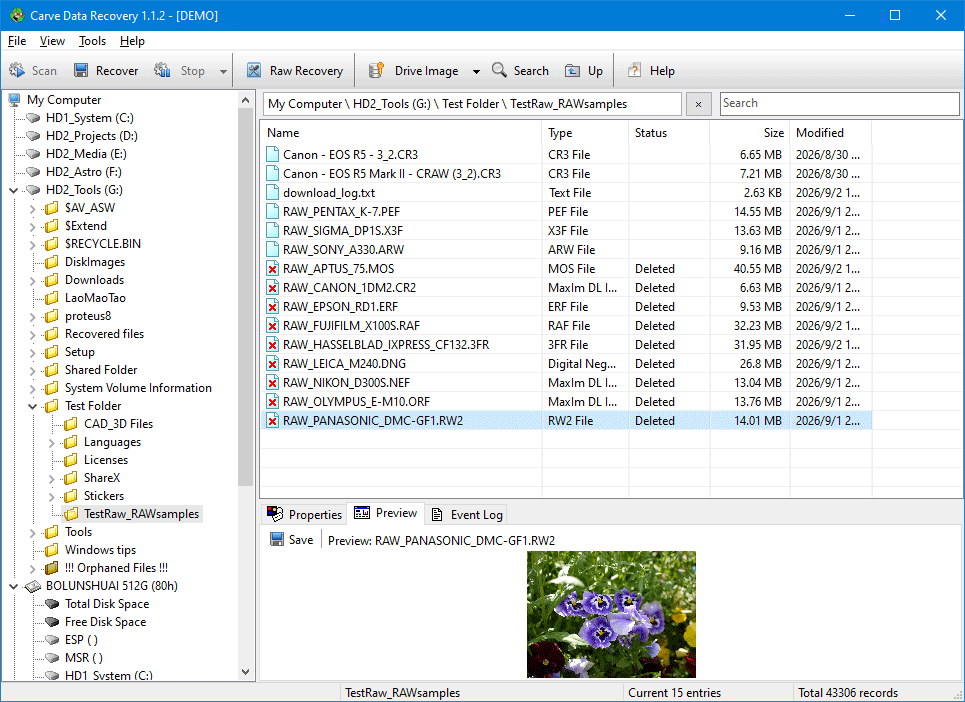
The list has one row per entry - Name, Type, Status, Size, Modified - and the tree on the left can be opened folder by folder:
- An entry that was found as deleted is marked Deleted in the Status column.
- Deleted files keep their name, size and dates if those fields had not been overwritten.
- A folder that has been damaged, or that points back at one of its own ancestors, is marked as a bad folder. It is listed, but it cannot be opened.
Select a file and look at it in the Preview pane before recovering it: that is the quickest way to tell a file that is intact from one whose content is gone. If the names and sizes are listed but the preview is all zeros, the data itself has been erased - see the TRIM row in The Properties pane for whether that is expected on this volume.
To see how much a folder holds before recovering it, right-click it and choose Statistics - see Statistics.
When you only care about what was deleted, turn on Options -> Misc -> Show only deleted items after Standard Scan. Branches of the tree with nothing deleted underneath them then disappear. The setting takes effect after the next scan.
If Standard Scan finds nothing
The file system may be destroyed, unrecognised or absent altogether - a lost partition, free space, or a volume whose boot sector has been overwritten. In that case use Advanced Scan.
Related topics
Advanced Scan
Statistics
Recovering Files
The Properties pane
More in Scanning
- Advanced ScanAdvanced Scan does not trust the boot sector. It walks the disk sector by sector, picks up the records that describe files and folders wherever it finds them…
- Search for Lost PartitionsThis scan looks for the boot sectors of volumes that are no longer listed. Each one it recognises is added to the tree as a separate partition, with all of…
- Save and Resume a ScanAn Advanced Scan of a large drive can run for a long time. If you stop it - because you need the machine, or the drive is getting hot - you can have the…