Recovering Files
Files are recovered from the file list. Select the rows you want and press Recover on the toolbar, or right-click a row and choose Recover. Selecting a folder in the tree recovers everything inside it.
Recover is available as soon as at least one row is selected. With nothing selected there is nothing to recover, and the entry is greyed out.
Choosing a destination
The program asks for a destination folder. Always choose a drive other than the one you are recovering from - writing to that drive can destroy the data you are trying to rescue.
The program enforces this: a destination that lies inside the object being recovered from is refused, with an explanation, and you are asked to choose another folder. Recovering one partition to another partition on the same physical drive is fine, because the two regions do not overlap - it is only writing into the region being read that is blocked. The same rule applies when a drive image is created: the image cannot be saved onto the drive it is being made from.
Stopping a recovery
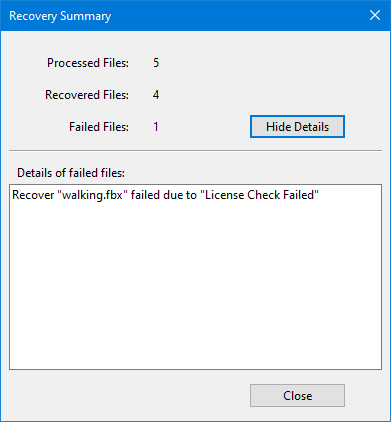
Press Stop to end the whole batch. Files that were already written are kept. The Recovery Summary reports how many files were processed, how many were recovered and how many failed.
What a failure means
Press Show Details in the Recovery Summary for the list of failed files. A file fails when its data has already been overwritten, when its cluster chain can no longer be followed, or - in the demonstration version - when the file is larger than 1 MiB. Registering the product removes the size limit.
Related topics
More in Recovering & preview
- Raw RecoveryRaw Recovery is a window that lists the files found by carving on the object selected in the main window.
- Finding FilesOnce an object has been scanned, the file list can be searched. This is much quicker than scrolling through tens of thousands of recovered entries looking for…
- StatisticsStatistics counts what a folder - or a selection of rows - contains: how many subdirectories, how many files, and how much data.
- PreviewThe Preview pane reads the selected file straight from the drive and shows you what is in it - without recovering it first.