Statistics
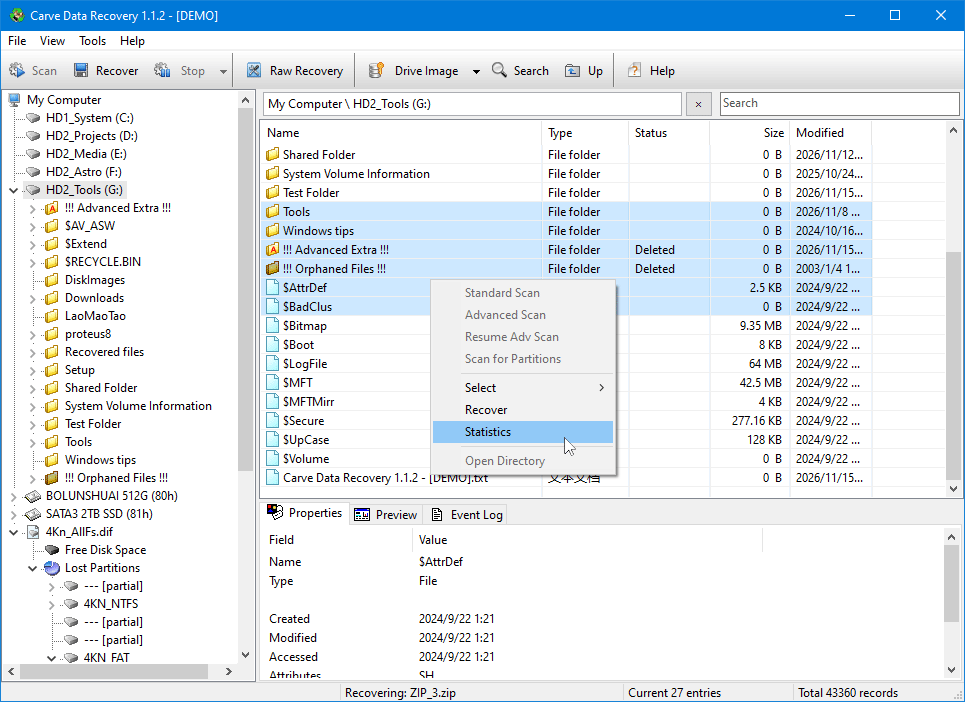
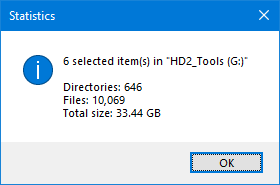
Statistics counts what a folder - or a selection of rows - contains: how many subdirectories, how many files, and how much data. Use it before recovering a large folder to see what it will cost in time and space, and to check that a partly recovered tree really holds what you expect.
Counting a folder
Right-click a folder in the tree and choose Statistics. Everything below that folder is counted, at every depth:
- Directories - the number of folders found, including the one you selected.
- Files - the number of file entries.
- Total size - the sum of the file sizes, which is what the Size column shows. This is the logical size of the data, not the space the files take on the disk after cluster rounding.
Counting a selection
Select one or more rows in the file list - files, folders, or a mixture - and choose Statistics from the list's context menu. Selected files count as one file each; selected folders are counted as described above. If a folder and something inside it are both selected, the contents are counted once, not twice.
What is included, and what is not
- Results of an Advanced Scan can be counted too, including the folders rebuilt under !!! Advanced Extra !!! and the files collected in !!! Orphaned Files !!!.
- When Show only deleted items after Standard Scan is on, only the entries that are actually listed are counted - so the numbers agree with what is on the screen.
- A folder whose contents cannot be read - a damaged folder that points back at one of its own ancestors - counts as a folder and nothing more.
- Rows that are not files or folders - a physical drive row, a drive image row, a partition that has not been scanned yet - cannot be counted. The menu item is greyed out when nothing in the selection can be counted; when a selection mixes both kinds, the rows that could not be counted are reported at the bottom of the dialog as "n item(s) were skipped".
Speed
Statistics reads the records collected by the scan, not the drive, so it is quick even on a folder holding hundreds of thousands of entries. Nothing is written anywhere.
Related topics
More in Recovering & preview
- Recovering FilesFiles are recovered from the file list. Select the rows you want and press Recover on the toolbar, or right-click a row and choose Recover.
- Raw RecoveryRaw Recovery is a window that lists the files found by carving on the object selected in the main window.
- Finding FilesOnce an object has been scanned, the file list can be searched. This is much quicker than scrolling through tens of thousands of recovered entries looking for…
- PreviewThe Preview pane reads the selected file straight from the drive and shows you what is in it - without recovering it first.