Preview
The Preview pane reads the selected file straight from the drive and shows you what is in it - without recovering it first. It is the quickest way to tell an intact file from one whose data has already been overwritten, and it is worth doing before committing to a long recovery of the wrong files.
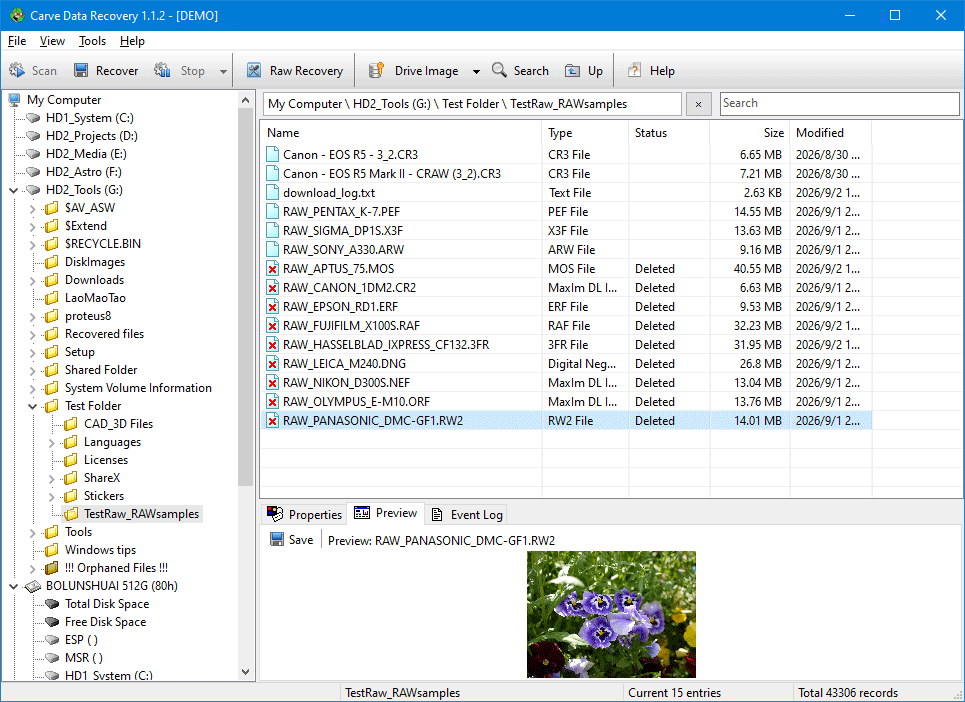
What can be previewed
- Images - bitmap, JPEG, PNG, GIF, TIFF and the camera raw formats the program recognises. Raw Recovery matches are also shown as thumbnails, generated as you scroll.
- Video and audio - the formats the bundled player supports, so you can watch a recovered clip before writing it out.
- Archives - the contents of a ZIP, 7z or RAR archive are listed, including archives whose directory sits at the very end of a large file.
- Documents - word processing, spreadsheet, presentation and plain-text files.
- Drawings - DWG and STL files, including the embedded preview image that a DWG file carries.
- Anything else - shown as a hexadecimal dump, which is often enough to identify a file's real type.
Notes
- Previewing only reads. Nothing is written to the drive being examined.
- A preview reads the first part of the file, and for formats whose directory or index lives at the end, the last part as well.
- If a file cannot be previewed, that is not proof it is damaged: the format may simply not be one the program can show. Recover it and open it in the program that normally reads it.
- PDF files are not previewed - they are shown as a hexadecimal dump. Scanning and recovery are unaffected: a PDF file is recovered like any other.
- Switch the pane on or off from the View menu.
Related topics
More in Recovering & preview
- Recovering FilesFiles are recovered from the file list. Select the rows you want and press Recover on the toolbar, or right-click a row and choose Recover.
- Raw RecoveryRaw Recovery is a window that lists the files found by carving on the object selected in the main window.
- Finding FilesOnce an object has been scanned, the file list can be searched. This is much quicker than scrolling through tens of thousands of recovered entries looking for…
- StatisticsStatistics counts what a folder - or a selection of rows - contains: how many subdirectories, how many files, and how much data.