Troubleshooting
The program needs administrator privileges to open built-in and physical drives. Accept the elevation prompt when it starts, or start it from a shortcut set to Run as administrator. Without elevation, logical drives may still be listed while the physical drives behind them are missing.
A drive is reported as not ready
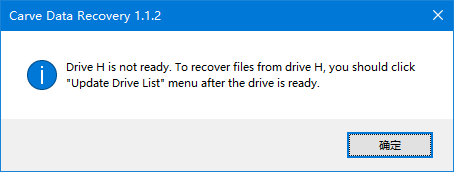
When a drive or a partition cannot be opened at start-up, the program retries it twice - about half a second apart - before giving up. A card reader with no card in it, a disc that has not been recognised yet or a USB drive that is still being enumerated often works on the second or third attempt. Only when every attempt fails is the drive left out of the tree and the message Drive X is not ready shown.
The Event Log records how many attempts were made and the last error Windows reported, which is what support needs if a drive refuses to load consistently. If the drive is listed but the tree has no partitions under it, click Update Drive List once the drive has settled.
The drive disappears while scanning
A drive that is unplugged, that resets, or that takes too long to answer is reported as offline, and the operation stops rather than returning wrong data. If this happens repeatedly the drive is failing: make a drive image as soon as you can, and work from the image. Plugging the drive back in and starting the operation again is enough - the program reconnects to the drive when a new operation begins.
A file is refused as too large
Files larger than 1 MiB need a registered copy. See Registration.
A file cannot be previewed
Preview only understands a limited set of formats. A format the program cannot show is displayed as a hexadecimal dump instead - that does not mean the file is damaged. Recover it and open it in the program that normally reads it.
A long scan appears to have stopped
The status bar shows the current stage even when the progress percentage is barely moving; some stages work through large numbers of records before the percentage changes. When a scan is genuinely finished, the progress indicator disappears and the results are filled in.
Files are listed, but their contents are empty
Names and sizes survive a delete because the directory entries are not touched; the data itself may not. On a solid-state drive Windows sends TRIM when a file is deleted, and the drive is then free to erase the blocks - after which nothing can read them back. Select the volume and look at the TRIM row in the Properties pane: when it reads On - deleted data on this drive may already be erased, an empty preview is expected rather than a fault in the program.
Nothing is recoverable
If the data was overwritten after the loss, nothing can bring it back - any write to the affected volume can destroy it. Stop writing to the drive at the first sign of trouble. If a Standard Scan found nothing, try Advanced Scan, and then Raw Recovery: each step gives up more structure in exchange for reaching more data.
A menu entry is greyed out
Right-click entries reflect the current selection. Standard Scan, Advanced Scan, Search for Lost Partitions and Resume Advanced Scan need exactly one drive or partition selected; Recover needs at least one file or folder selected in the list; Statistics needs a folder, or a selection that contains files or folders. During a scan, a recovery or the creation of a drive image, operations that would interfere are disabled until it finishes.
Contacting support
The program writes its log files into the data folder inside the program folder. Attach them, together with a description of what you did and what happened, when you write to [email protected].
More in Others
- RegistrationOpen the registration window with Help -> Enter Registration Key. The program also offers it when the demonstration version refuses a file.
- License AgreementThe end user licence agreement for Carve Data Recovery: what the licence permits, the demo limit, and the warranty and liability terms.